
Uplink
Know when your internet is the problem.
A native macOS menu bar app that quietly watches your connection. When latency spikes or packets start dropping, it's the first thing to tell you — before your Zoom call stutters, before your game rubber-bands, before you waste an hour blaming the other end. And it keeps a full year of history, so you can prove it later.
Requires macOS 13 Ventura or newer. Apple Silicon or Intel.
Silent until it isn't
The menu bar icon stays neutral while your connection is healthy — no color, no numbers, no nagging. It turns yellow when latency or packet loss is elevated, orange when it's poor, and red when the connection is gone entirely, adding a single number that explains why.
A sparkline you can interrogate
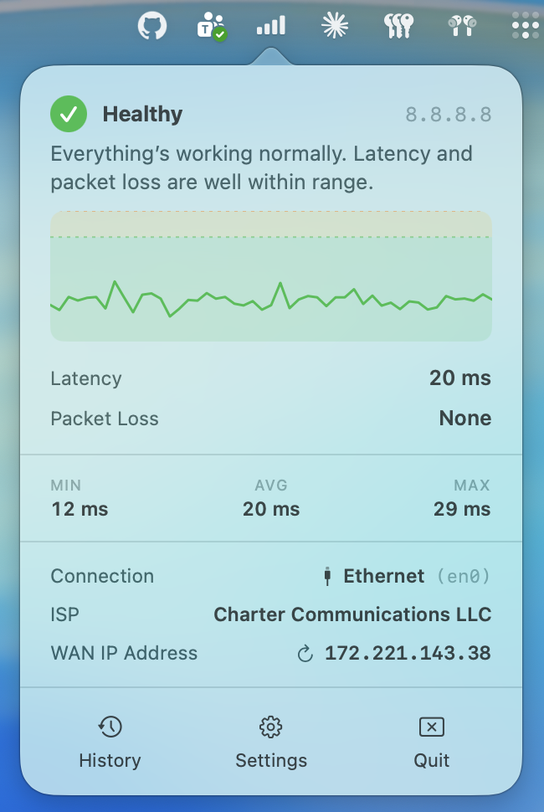
Click the icon for a two-minute latency graph, current ping and packet loss, and min / avg / max for the window. Hover any point on the chart to see that sample's exact latency and how long ago it was measured — or "No reply," if that particular ping timed out.
The measurement is real
Uplink sends ICMP Echo Requests from inside the app using the same unprivileged socket path macOS's own ping uses — no subprocess, no sudo, no kernel extension. Latency is classified on the median of successful pings in a rolling two-minute window, so a single 500 ms spike won't flip the indicator unless it's part of a pattern. Outages are only recorded after sustained failure, so brief blips never pollute your statistics.
Your network, always visible
The popover shows your connection type and the interface behind it — "Ethernet (en0)" — so you can tell a dock's Ethernet from the built-in port, or spot which tunnel a VPN is using. Your ISP and public-facing WAN IP sit right below, watched in the background. Catch a silent DHCP renewal, a VPN hand-off, or a network switch without digging through System Settings. Click the IP address to copy it.
Notifications that earn their buzz
A system notification the moment your connection degrades, or when your WAN IP changes — once, not fifty times. A built-in rate limiter requires a sustained five-minute recovery before alerting you about the same metric again. One toggle in Settings to go fully silent.
A full year of history
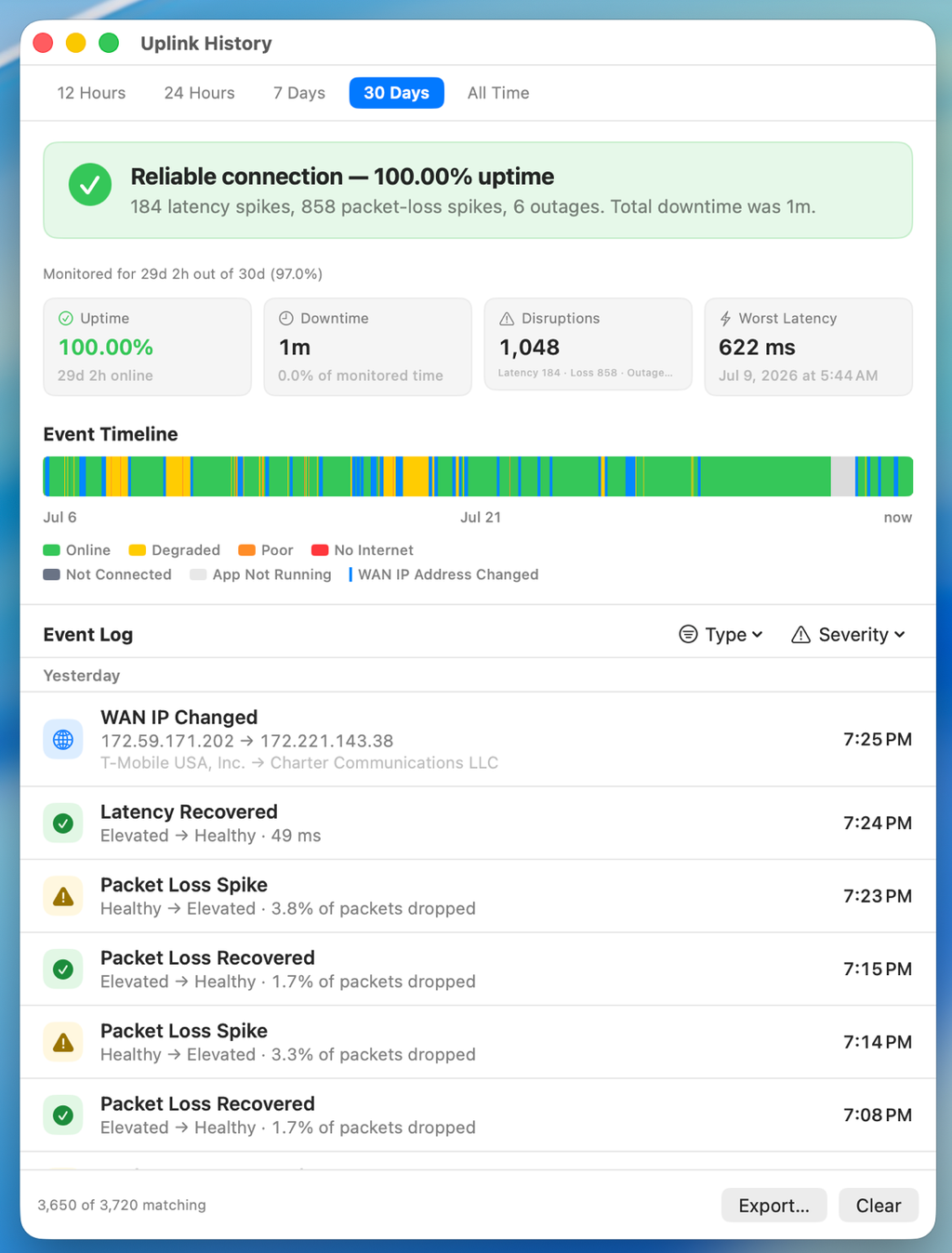
History leads with a plain-language verdict — "Reliable connection — 99.98% uptime" — before any numbers, then backs it up with uptime, total downtime, disruption count, and worst recorded latency. A color-coded timeline shows your connection state at a glance; hover anywhere to see what was happening at that moment. Below it, an event log grouped by day under sticky headers: latency spikes, packet-loss events, outages, connection changes, and WAN IP changes. Sleep is shown honestly as unmonitored time, not as a stretched-out guess.
Evidence for your ISP
Switch between the last 12 hours, 24 hours, 7 days, 30 days, or everything recorded — then export any view to CSV. Useful when "the internet keeps dropping" needs to become a support ticket with dates and numbers attached.
Tune it to your connection
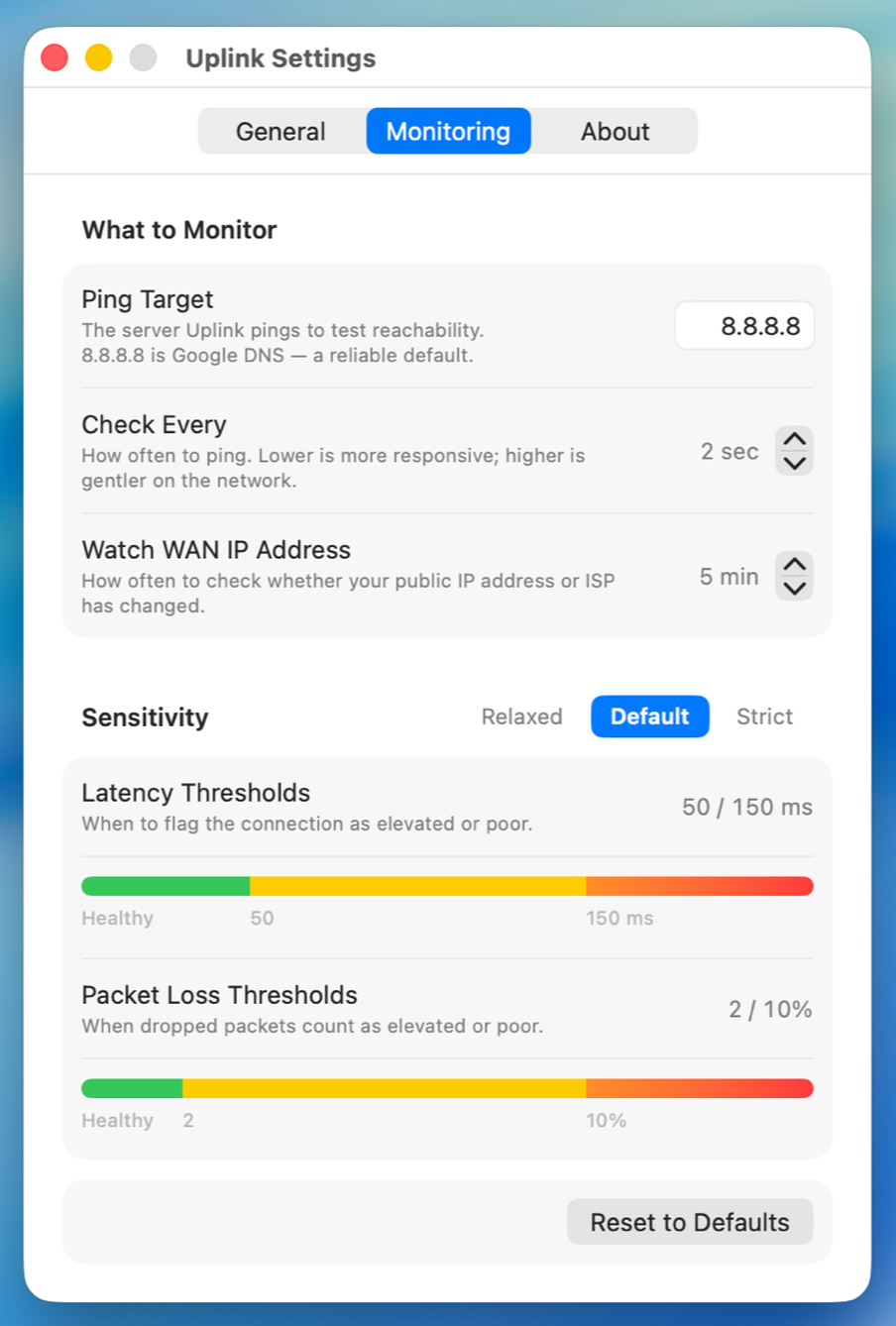
Settings is split into General, Monitoring, and About — nothing scrolls. Pick a ping target and check interval, decide how often to watch your WAN IP, and choose a sensitivity preset — Relaxed, Default, or Strict — so you never need an opinion about milliseconds. Or set latency and packet-loss thresholds yourself. Launch at login and the optional menu bar readout are one checkbox each.
Ten languages, all the way through
English, German, Spanish, French, Italian, Japanese, Korean, Portuguese (Brazil), Simplified Chinese, and Traditional Chinese — including every corner of the History window.
Quiet and respectful
No dock icon. No telemetry. No tracking. No account. No crash reporting. No ads. Uplink makes exactly two kinds of outbound request: ICMP echo packets to the host you configure, and a periodic HTTPS lookup to determine your public IP address and ISP. Your settings, history, and last-known IP live only on your Mac.
A menu bar app, as native as it gets
Uplink is a "mac-ass Mac app." No Electron. No cross-platform framework. No background service. Just SwiftUI, Combine, and AppKit — a sandboxed, outbound-only universal binary that runs natively on Apple Silicon and Intel.